
Introduction
Blocking Safari on your iPhone is often essential to manage distractions and ensure safe internet usage. As the default browser, Safari offers seamless access to online content, which isn’t always suitable for all users or situations. Whether you’re a parent looking to oversee your child’s online activities or someone attempting to optimize productivity by minimizing online diversions, understanding the methods to block Safari is important. This guide will provide you with the necessary tools and techniques to confidently manage Safari’s accessibility on your device.

Understanding Safari and Its Role on iPhone
Integrated deeply within the iPhone’s OS, Safari functions as the primary internet browser, facilitating swift and smooth internet browsing. This default status and rich feature set make it ideal for quick access to the web, but it can also pose issues such as unregulated or continuous exposure to the internet.
A clear understanding of Safari’s integral role in daily digital activities helps in making informed choices about when and why it might be appropriate to limit its access, thus guiding you towards making more thoughtful decisions about its control.
Reasons to Block Safari on iPhone
Having identified the importance of managing Safari, exploring the motivations for doing so helps tailor the approach to your specific needs.
Parental Controls and Child Safety
Many parents seek to control their children’s internet exposure. Blocking Safari aids in this by limiting access to inappropriate or distracting content, fostering a safer online environment.
Enhancing Productivity and Focus
In both professional and personal settings, online distractions can erode productivity. By blocking Safari, individuals can mitigate these diversions and maintain focus.
Privacy and Security Measures
In today’s digital age, privacy is paramount. Restricting browser access can serve as an additional layer of protection against potential data breaches or other online threats.
Recognizing these motivations aids in selecting a suitable strategy to block Safari, aligning the solution with what you aim to achieve.
Effective Methods to Block Safari
Numerous options are available to block Safari on your iPhone, each catering to different requirements. Below, we present some effective strategies:
- Using Screen Time Settings
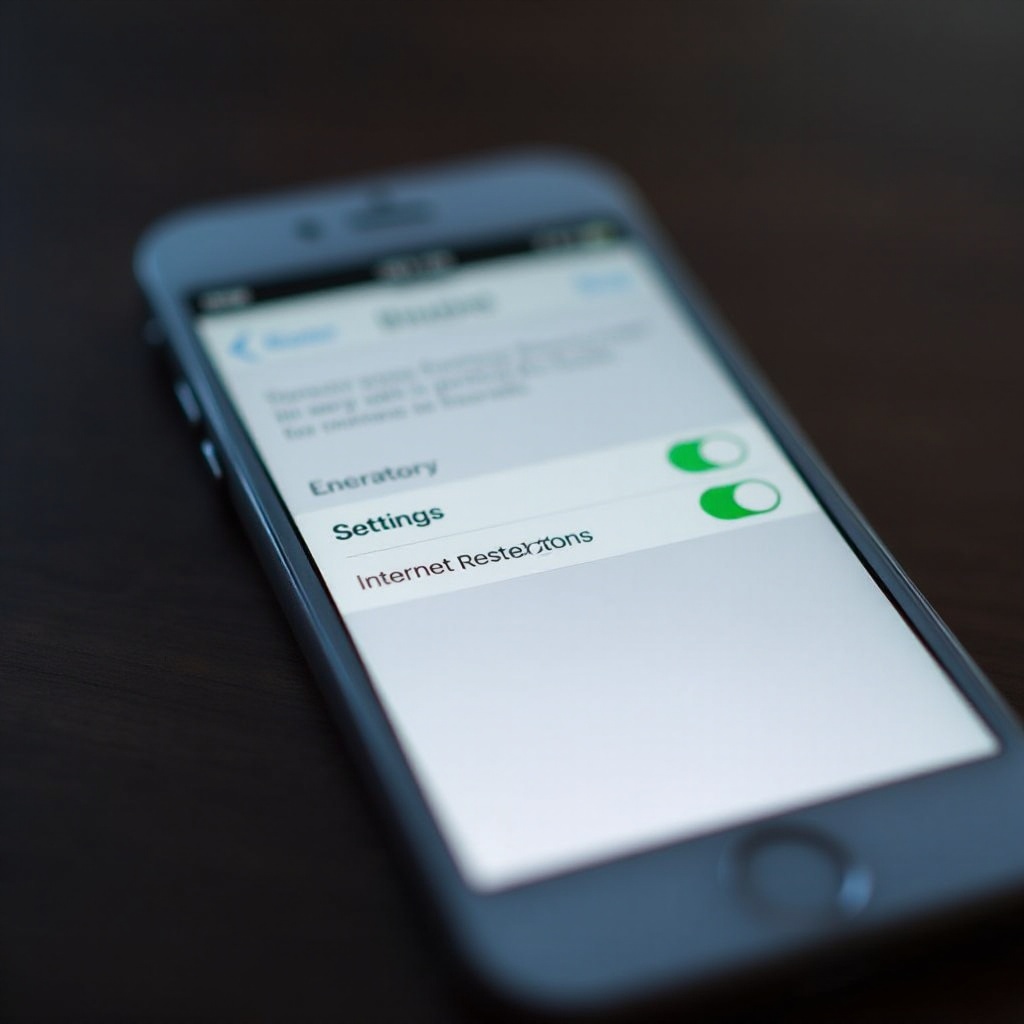
- Access Settings > Screen Time on your iPhone.
- Select Content & Privacy Restrictions and toggle it on.
- Enter Allowed Apps and disable Safari.
This built-in feature is straightforward, providing a native solution ideal for both parental controls and personal usage management.
- Employing Third-Party Apps
- Discover apps like Net Nanny or Qustodio on the App Store designed to manage and restrict web access.
- Follow the app’s setup instructions to effectively block Safari and monitor usage.
Third-party applications reach beyond mere blocking, offering comprehensive features such as usage monitoring and time constraints.
- Setting Up Family Sharing Controls
- Navigate to Settings > your name > Family Sharing.
- Through Family Sharing, manage Screen Time and restrictions across all devices linked to your account.
This solution is especially advantageous for households managing several iPhones across different family members.
Choosing the right method depends on your specific reasons for blocking Safari, ensuring that the approach is aligned with your broader goals.
Alternatives to Safari Browser
While blocking Safari, maintaining alternative internet access is advantageous for certain functions or tasks.
Recommended Alternative Browsers
Consider browsers like Firefox Focus, which prioritize privacy and can be more easily managed than Safari.
Blocking Other Browsers for Full Control
It is crucial to maintain control over any other browsers installed. Similarly, use the discussed methods like Screen Time or apps to restrict these browsers and ensure consistent control.
Having alternatives ensures internet access remains accessible under necessary supervision and management.
Tips for Managing Internet Usage on iPhone
Balancing online accessibility with protective measures ensures a healthy digital environment. Consider these tips to achieve such equilibrium:
Balancing Restrictions with Accessibility
Engage in dialogues about digital responsibility instead of imposing restrictions without context. Such conversations encourage cooperation and understanding.
Educating on Safe Internet Practices
Share knowledge of online safety, encouraging the adoption of wise browsing habits, like avoiding entering personal information in untrusted sites.
Adopting these practices supports long-term digital well-being, fostering an environment where internet use is both safe and enriching.
Conclusion
Taking steps to block Safari on an iPhone is a proactive measure for enhancing safety and productivity. By selecting methods that align with your personal goals, you can effectively manage internet access and harness the digital environment in a balanced manner.
Frequently Asked Questions
How do I unblock Safari once it’s blocked?
To unblock Safari, go to ‘Settings’ > ‘Screen Time’ > ‘Content & Privacy Restrictions’ > ‘Allowed Apps’ and toggle Safari back on.
Can I block Safari temporarily?
Yes, using the Screen Time feature, you can easily toggle restrictions on and off, allowing for temporary blocks as needed.
What is the best app for blocking Safari on iPhone?
Recommended apps include Qustodio and Net Nanny, both of which offer comprehensive control over web access and additional safety features.