
Your iPhone’s Reading List is an invaluable tool for saving those articles and web pages you want to read but don’t have time for at the moment. Learning how to locate and manage this feature can transform casual content consumption into a more organized experience.
Introduction
The Reading List on iPhone, accessible via Safari, allows users to save articles for later reading. This function is perfect for skimming less and reading more intentionally, improving your productivity while waiting for appointments or during commutes.
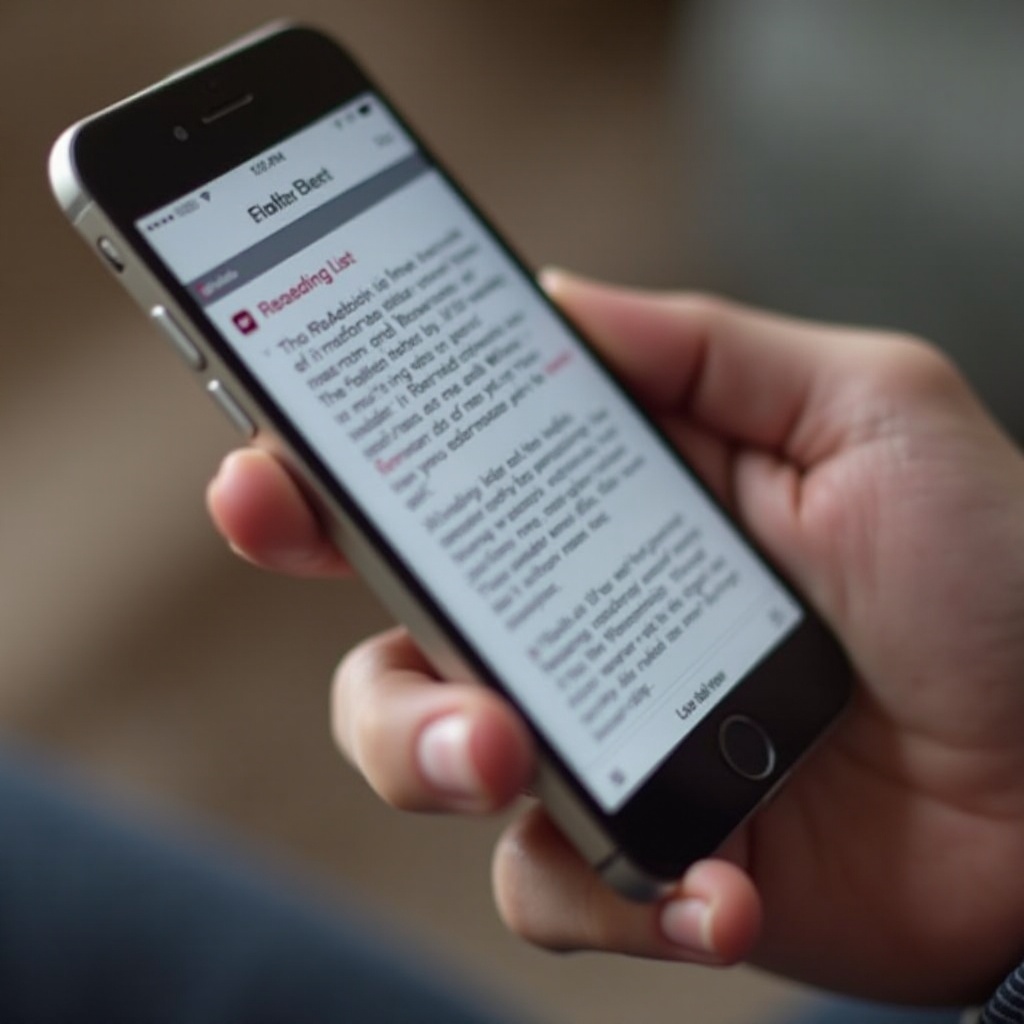
Understanding the iPhone Reading List
The Reading List integrates seamlessly within the Safari browser, allowing users to store articles for offline reading, unlike typical bookmarks that require internet access. Users appreciate it for its ability to separate read from unread items and store them all in one convenient location.
Grasping how the Reading List works amplifies its utility and sets the foundation for effective management.
How to Access Your Reading List on iPhone
Accessing your Reading List is straightforward, once you know where to look.
- Open Safari on your iPhone.
- Find and tap the open book icon at the bottom of the screen.
- Tap on the eyeglass icon, which denotes your Reading List.
By consistently accessing your Reading List, you can spend less time searching and more time reading content that matters.
Managing Your Reading List Effectively
Once you’ve familiarized yourself with accessing your Reading List, it’s time to dive into managing it.
- Adding Articles and Web Pages:
- Open the webpage in Safari.
- Tap the share icon at the bottom menu.
-
Select ‘Add to Reading List’.
-
Organizing and Prioritizing Content:
- Swipe left on an item to either mark it as read or unread.
-
To reorder your list, tap and hold an item, then drag it to a new position.
-
Removing Items from Your Reading List:
- Swipe left on articles you wish to remove and tap ‘Delete’.
- For multiple deletions, tap ‘Edit’, select your items, and remove them.
Effective management minimizes clutter and ensures you focus on what’s relevant and engaging.

Syncing Your Reading List Across Apple Devices
The ability to sync your Reading List is crucial for those using multiple Apple devices. This feature allows you to maintain a consistent reading experience.
- Go to ‘Settings’ on your iPhone.
- Tap your Apple ID at the top, followed by ‘iCloud’.
- Ensure ‘Safari’ is toggled on to enable iCloud syncing.
Syncing can often resolve the frustration of losing track of your saved articles. Should issues arise, turning the Safari option off and on within iCloud settings can resolve minor syncing glitches.
Optimizing Your Reading Experience
To further enrich your reading experience, consider these additional strategies:
- Use Safari’s Reader View to strip away ads and distractions for a cleaner reading interface.
- Explore third-party apps or extensions that offer additional features like categorization or annotation capabilities.
These enhancements can tailor your Reading List usage to better suit personalized reading habits and preferences, fostering a more enjoyable and productive experience.

Benefits of Using a Reading List on iPhone
The advantages of efficiently using your iPhone’s Reading List surpass traditional bookmarking methods:
- Streamlined Access: Instantly reach all stored articles in one place.
- Offline Reading: Download and read articles without an internet connection.
- Better Organization: Sort items efficiently to maintain focus and reduce clutter.
By leveraging these benefits, you can transform how you consume content on your iPhone, promoting a more organized and satisfying reading habit.
Conclusion
Mastering the Reading List on your iPhone enhances both your productivity and content consumption. By understanding its features and managing it effectively, you’ll ensure no captivating articles slip through the cracks, enriching your digital reading life.
Frequently Asked Questions
How can I add items to my Reading List if I’m offline?
While you can’t add items offline, pages added online will be available offline. Open it in Safari, then add once online.
Is there a limit to how many items I can add to my Reading List?
There’s no specific limit from Apple, but managing a smaller number ensures better performance.
Can I organize my Reading List into folders or categories?
The Reading List doesn’t support folders, but marking items as read or unread can provide basic organization.