
Introduction
The flash on your iPhone is an essential tool for capturing great photos in low-light environments. However, some users face the frustrating ‘iPhone Flash Disabled’ issue, which can hinder photo quality. This guide aims to address this problem by exploring possible causes and providing step-by-step solutions to restore full functionality to your camera flash.
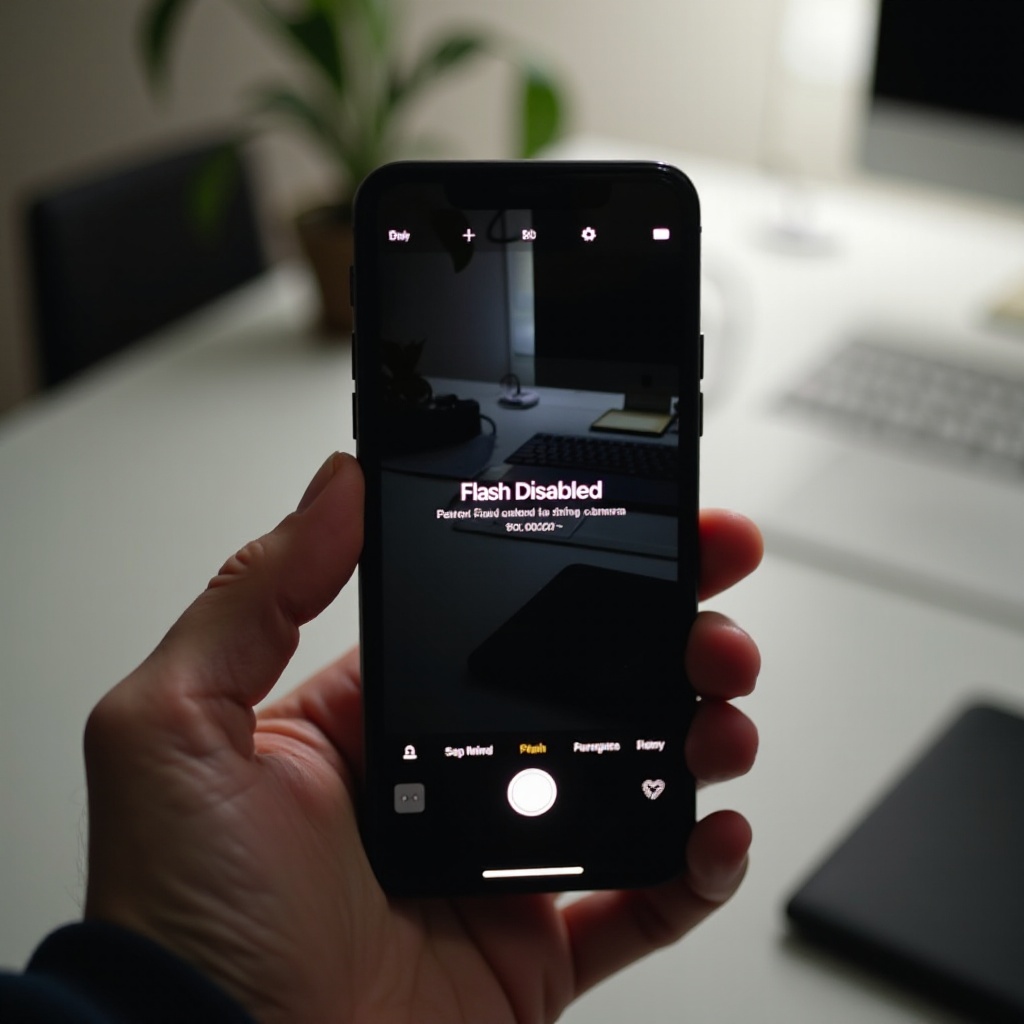
Understanding the ‘iPhone Flash Disabled’ Notification
Encountering the ‘iPhone Flash Disabled’ notification can be perplexing, especially when you need your camera the most.
-
What Does It Mean?
The notification typically indicates a temporary condition such as excessive heat or a conflict in your phone’s settings that the system deems unsuitable for flash operation. -
Common Triggers for the Notification
The flash can disable itself in high-temperature scenarios to avoid damage. Also, running multiple apps and settings errors could lead to this notification.
Connecting this understanding with your efforts to maintain optimal device conditions will prove beneficial in ensuring smooth device operation.
Basic Troubleshooting Steps
Let’s delve into some straightforward steps you can take when your iPhone flash isn’t working as expected.
-
Checking Camera and Flash Settings
Verify your camera settings by opening the Camera app, tapping the lightning bolt icon, and choosing ‘Auto’ or ‘On’. -
Restart Your iPhone
Often, a quick restart can resolve many issues. Simply hold the power button and the volume down button until the power-off slider appears. After turning it off, wait a few seconds before turning it back on. -
Update iOS Software
Software glitches are not uncommon and can be resolved by updating your system. Head to Settings > General > Software Update to install any available updates.
These preliminary steps are often effective in addressing common causes of flash issues. If the flash problem persists beyond these measures, it might be necessary to explore more involved solutions.

Advanced Solutions for Persistent Problems
Persistent flash issues sometimes require advanced solutions. Here are more thorough approaches to consider.
-
Restore iPhone Settings
If simpler solutions fail, restoring default settings can often resolve glitches. Navigate to Settings > General > Reset > Reset All Settings. This won’t erase your data but resets system preferences. -
Reset All Settings on Your iPhone
Should restoring settings fall short, a total reset might be necessary. Go to Settings > General > Reset > Erase All Content and Settings. Ensure that you have backed up important data first. -
Backup and Hard Reset
If issues persist, a hard reset might be the answer. Connect your iPhone to a computer with iTunes and force restart it by pressing the power and home buttons until the recovery screen appears, then select ‘Restore’.
These advanced methods can remedy even stubborn problems but certain issues might indicate underlying hardware problems that need addressing.
Identifying Hardware Problems
Advanced troubleshooting sometimes reveals hardware-related problems. Understanding these ensures that you seek the right help.
-
Signs of Hardware Failure
Physical damage or internal malfunction may be the cause. Obvious signs include damage to the camera lens or an unresponsive flash. -
Visit an Apple Service Provider
If these signs are evident, scheduling a visit with an Apple service provider or a store ensures a comprehensive diagnosis and repair.
Once hardware issues are resolved, maintaining your device helps prevent recurrence.
Preventing iPhone Flash Issues in the Future
To avoid future issues with your iPhone’s flash, maintain and care for your device appropriately.
-
Regular Software Updates
Updating iOS can often prevent glitches that might disable flash functionality. Staying current with updates is crucial. -
Avoid Overheating Your Device
Protect your device from high temperatures by avoiding prolonged exposure to direct sunlight or heat sources, and keeping Bluetooth and other power-consuming features off when not in use.
Regular maintenance and understanding preventive measures will keep your iPhone in peak condition, ensuring the flash works whenever you need it.
Conclusion
Addressing iPhone flash issues can range from simple troubleshooting to more complex solutions. By understanding how and why these problems arise, you can effectively restore functionality. If challenges persist, seeking professional help is recommended. Regular device care and updates protect your iPhone and keep its features running optimally.
Frequently Asked Questions
Why is my iPhone flash disabled even after a restart?
The issue might be due to overheating or an outdated iOS version. It might require a hard reset or professional assessment.
Can software updates cause flash issues?
Occasionally, updates may introduce faults. Ensure you’re running the latest version to benefit from bug fixes.
What should I do if the problem persists after trying all solutions?
Consulting Apple support or visiting an Apple service provider is advisable for a thorough check and professional repair.