
Introduction
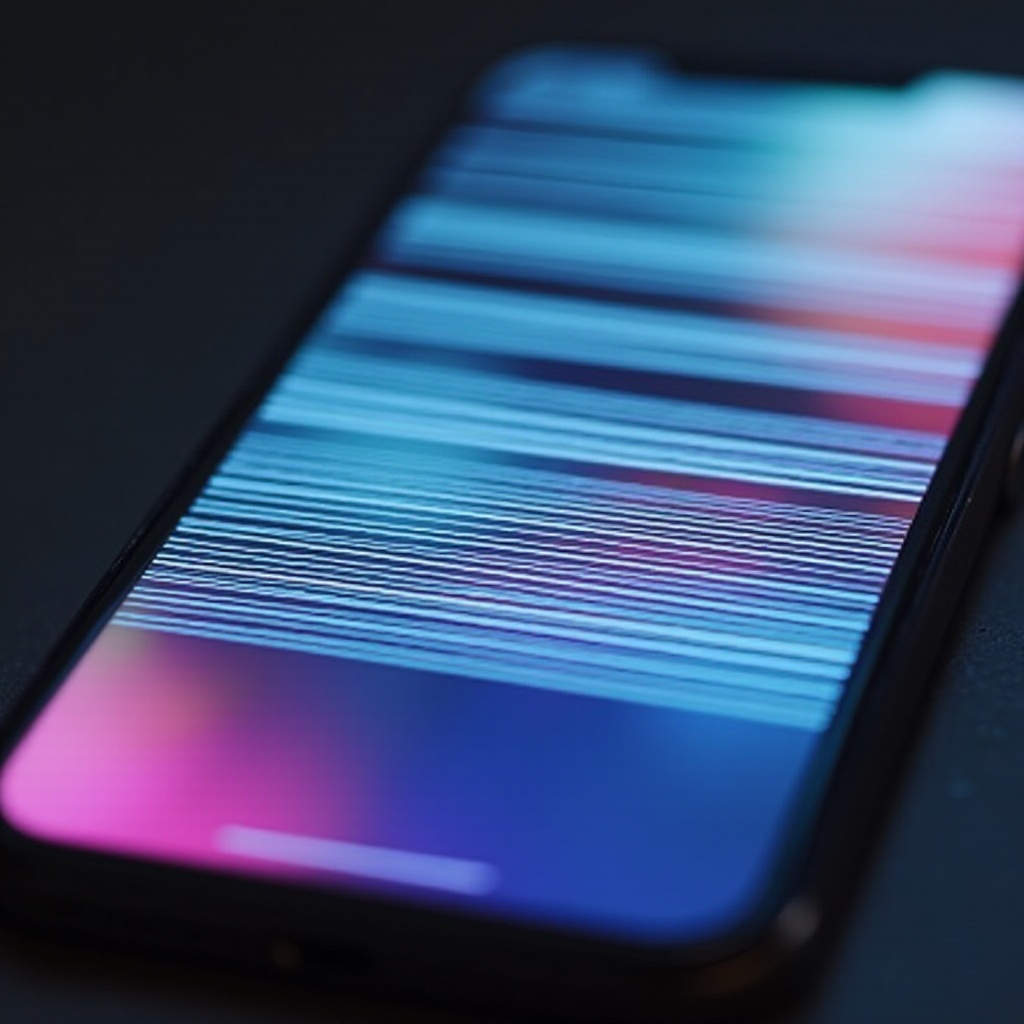
White lines appearing on your iPhone screen can disrupt your day-to-day activities. Addressing these lines swiftly and effectively is crucial to maintaining your device’s performance. This guide walks you through identifying the cause, executing DIY fixes, and recognizing when professional assistance is necessary.

Understanding the Causes of White Lines on iPhone Screens
Grasping the potential causes of white lines on your iPhone screen helps in choosing the right approach for repairs. These lines could arise from software glitches or underlying hardware issues.
Software-Related Issues
These can include failed updates or app malfunctions causing temporary screen anomalies. Devices running outdated software are particularly prone to such glitches. Ensuring your iPhone is always updated can mitigate these issues.
Hardware Malfunctions
Physical damage such as drops or impacts can lead to internal screen connector disruptions. These malfunctions manifest over time due to wear and tear, demanding a nuanced approach to decide whether repairs or replacements are necessary.
Initial Troubleshooting Steps
Initial fixes can often eliminate white lines without needing advanced solutions. Implementing these can save you both time and money.
Restarting and Updating Your iPhone
- Restart your device by holding the power button until the power off slider appears. Slide to turn off, then press the power button to restart.
- Check for software updates by navigating to Settings > General > Software Update, and install any available updates.
Performing a Hard Reset
A hard reset offers a system refresh to tackle pesky glitches:
1. For iPhone 8 or later: Quickly press and release the Volume Up and Down buttons, then press and hold the Side button until the Apple logo appears.
2. For iPhone 7 and 7 Plus: Press and hold both the Volume Down and Side buttons until you see the Apple logo.

Advanced Repair Techniques
If the initial steps don’t resolve the issue, it’s time to explore more profound repairs, such as factory resets or DFU mode.
Restoring Factory Settings
To rectify any detrimental software changes, consider restoring factory settings:
1. Backup your iPhone using iCloud or iTunes.
2. Go to Settings > General > Reset > Erase All Content and Settings.
3. Follow the prompts to complete the reset process.
Using DFU Mode for Deep Restoration
The DFU (Device Firmware Update) mode allows for comprehensive device restoration:
1. Connect your iPhone to a computer and open iTunes.
2. Quickly press and release the Volume Up, and then the Volume Down button, followed by holding the Side button until the screen turns black.
3. While holding the Side button, simultaneously hold the Volume Down button for about 5 seconds, then release the Side button but continue holding the Volume Down until iTunes recognizes your iPhone in recovery mode.
Knowing these advanced methods ensures you’re prepared for persistent issues. Next, let’s determine when professional repair might be necessary.
When to Seek Professional Repair Services
Some issues require expert intervention. When DIY fixes fail, professional repair might be the best course of action.
Evaluating Warranty Options
Before opting for repairs, check your warranty or AppleCare plan for potential savings on covered repairs. This ensures you get the most cost-effective solution.
Choosing Between Manufacturer and Third-Party Repairs
Apple offers reliable solutions through its service centers. However, third-party shops often provide faster and cheaper services. Evaluate their credibility and balances quality versus cost.
Making informed choices about repair services can save you money and restore your device swiftly.
Conclusion
Repairing white lines on your iPhone screen demands an understanding of the issue’s origins, exploring DIY options, and seeking professional help when needed. Regular updates and smart handling can prevent future problems and ensure your phone remains in excellent condition.
Frequently Asked Questions
What should I do if the white lines reappear after a fix?
Reboot your phone and check for any software updates immediately. Persistent issues may need professional attention.
Is it safe to use third-party repair tools for my iPhone?
While third-party repairs can be cost-effective, they might void warranties or fail to meet Apple’s standards. Vet third-party services carefully before proceeding.
How can I prevent white lines from appearing in the future?
Keep your phone updated and handle it with care. Use a protective case and avoid exposing your phone to extreme conditions. Regular maintenance checks are advisable.