
Introduction
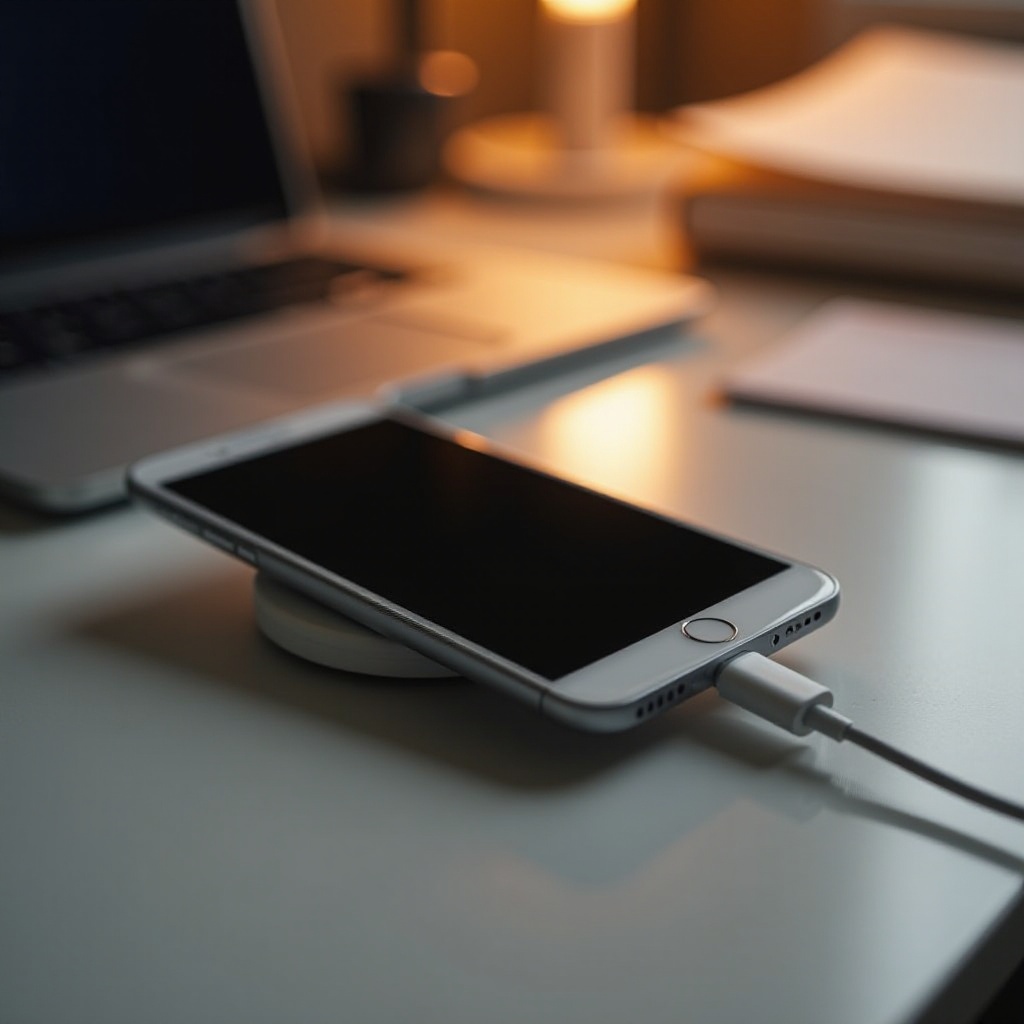
Experiencing an iPhone that charges but does not turn on can be frustrating, interrupting both communication and productivity. Whether it’s a hiccup or a significant issue, understanding the causes and solutions is vital for resolving this problem. This guide will explore potential reasons and provide detailed steps to restore your device’s functionality. Grasping the issue helps in targeted troubleshooting.
Understanding the Problem
Common Reasons for an iPhone Not Turning On
Your iPhone may not power up due to various issues such as software glitches, depleted or faulty batteries, or even malfunctioning hardware components like charging ports or displays. Identifying these causes enables effective troubleshooting, tailored to each specific problem.
Importance of Timely Solutions
Addressing the issue promptly is essential to prevent any further damage. Swift action helps ensure minor glitches do not progress into bigger problems, saving time and potential repair costs in the future.
Initial Troubleshooting Steps
Check Your Charging Accessories
- Inspect the Charging Cable and Adapter: Examine for visible damage, and try an alternate charger.
- Verify the Power Source: Test the power outlet or USB port with another device.
- Try a Different Charging Method: Use another power outlet or a USB port to rule out the original power source.
Perform a Force Restart
A force restart tackles unresponsive iPhones due to minor software glitches.
– iPhone 8 and later: Quickly press and release the Volume Up button, then the Volume Down button, and finally press and hold the Side button until the Apple logo appears.
– iPhone 7 and 7 Plus: Press and hold both the Volume Down and Side buttons until the Apple logo appears.
– iPhone 6s and earlier: Hold down both the Home and Top (or Side) buttons until you see the Apple logo.
A force restart could resolve minor software issues without data loss. Should it not work, consider advanced solutions.
Advanced Solutions
Restore Your iPhone Using iTunes or Finder
For deeper software issues, restoring your iPhone through iTunes or Finder may resolve persistent problems:
1. Connect to a Computer: Attach your iPhone to a Mac or PC with iTunes or Finder.
2. Put Your iPhone in Recovery Mode:
– For iPhone 8 and later, press and quickly release the Volume Up button, then the Volume Down button, then press and hold the Side button until the recovery mode screen appears.
3. Restore Your Device: In recovery mode, select ‘Restore’ in iTunes or Finder to reinstall iOS.
Take note, this process erases all data, so maintaining periodic backups is advised.
Entering Recovery Mode for Software Rescue
If your iPhone doesn’t respond to traditional fixes, recovery mode offers a lifeline. This process addresses considerable software errors by allowing communications with iTunes or Finder to troubleshoot significant software flaws.
Investigating Hardware Issues
Signs of Hardware Malfunction
Software problems aren’t always the culprit. Here are signs of potential hardware damage:
– Overheating or Deformity: Suggests internal damage.
– Screen Failures: Cracked or unresponsive screens might be the reason behind power issues despite the phone’s other functions operating normally.
Cleaning the Charging Port
Debris in the charging port can interfere with charging efficiency. Follow these steps for cleaning:
1. Turn Off Your iPhone: Prevent accidental short circuits while cleaning.
2. Carefully use a toothpick or needle to extract debris from the port.
3. Compressed Air Can: Gently dislodge particles if needed, but do so cautiously to avoid damage.
Re-test charging your iPhone after cleaning to determine if the issue has been resolved.
When to Seek Professional Help
Identifying When It’s Time for Repair
If DIY efforts fail and symptoms of significant damage are present, seeking a professional’s assistance is advisable. Indicators include:
– Persistent overheating despite no visible damage.
– Unresponsiveness to power attempts.
– Evidence of moisture exposure or clear water damage signs.
Choosing Reliable Repair Services
Opt for reputable repair services when professional intervention is necessary:
– Apple Support: Higher cost but genuine parts and service.
– Authorized Repair Centers: Licensed third-party services that offer a budget-friendly yet reliable alternative.
– Read Reviews: Check customer feedback to gauge repair centers’ services and reliability.

Conclusion
Solving the issue of an iPhone charging but not turning on involves understanding software and hardware aspects. By following these steps, you enhance your chance of self-restoring your device to full functionality. Always ensure backup measures are in place to protect against unforeseen malfunctions. When issues persist, turning to professionals brings the necessary expertise to restore your iPhone’s capabilities.
Frequently Asked Questions
Can data recovery be performed on a non-responsive iPhone?
Yes, data can be recovered through professional services or from backups, unless severe hardware damage exists.
How to tell if my iPhone battery needs replacement?
Signs include rapid battery drain, overheating, or inability to turn on despite charging.
Does charging with an unofficial charger cause this issue?
Yes, using unofficial chargers can harm battery health and charging ports, potentially leading to such issues.