
Introduction
Your Android device displaying the wrong time can be more than just a nuisance; it can interfere with your daily routine and scheduling. Understanding the reasons behind this and knowing how to correct it can save you from future hassle. We’ll explore common causes, apply simple fixes, and move on to advanced troubleshooting techniques to ensure your Android device maintains the correct time.
Understanding the Causes of Incorrect Time on Android
Before delving into solutions, it’s key to identify why your Android might be showing the wrong time. The malfunction can stem from various issues.
- Misconfigured time settings are common; you might have inadvertently adjusted or disabled automatic updates.
- Your device could fail to update the time zone when you change locations, leading to time discrepancies.
- Sometimes, it’s a minor software glitch, especially after your Android OS updates. Ensuring your phone’s system is functioning correctly is vital for accurate timekeeping. Becoming aware of these causes is the first step in resolving the wrong time issue. With this groundwork, you are prepared to apply straightforward solutions.
Quick Fixes to Correct Android’s Wrong Time
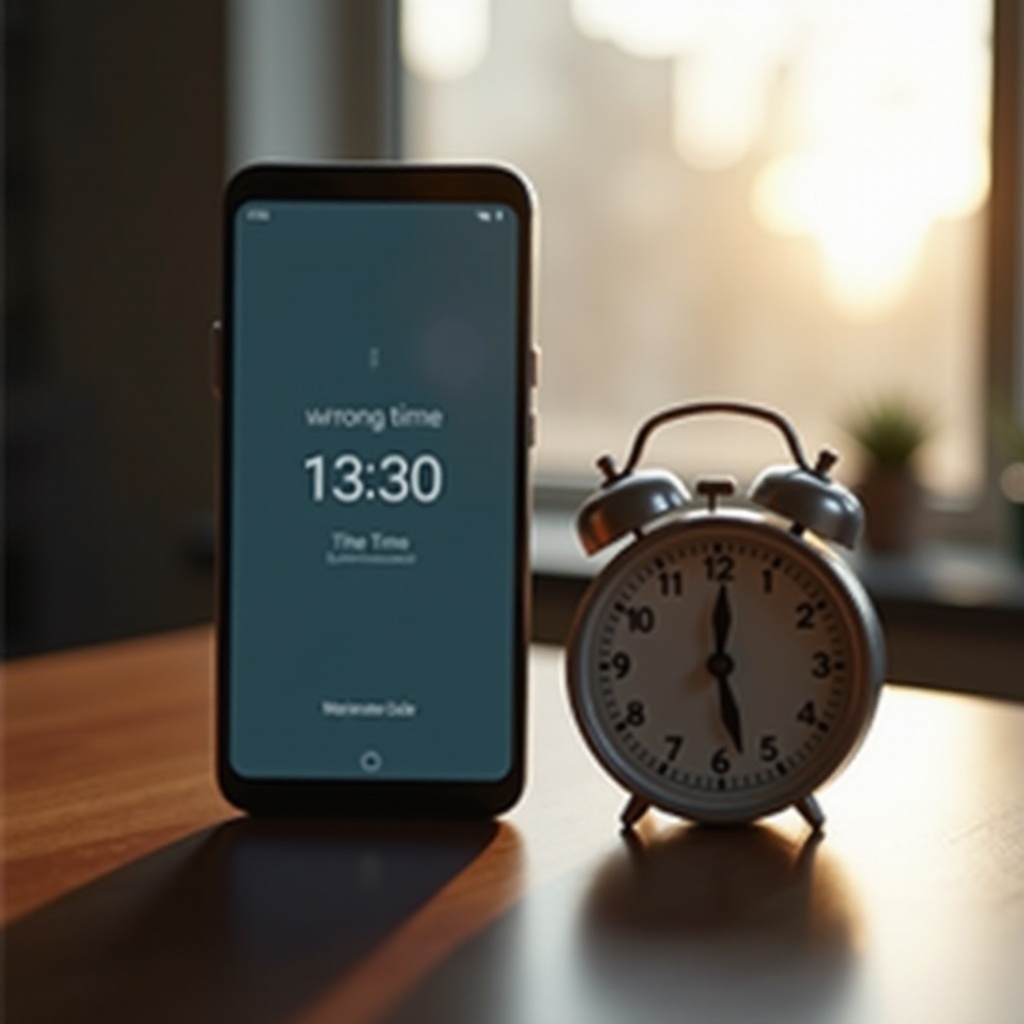
Start with these quick fixes to address time inaccuracies, as they often resolve the issue efficiently.
-
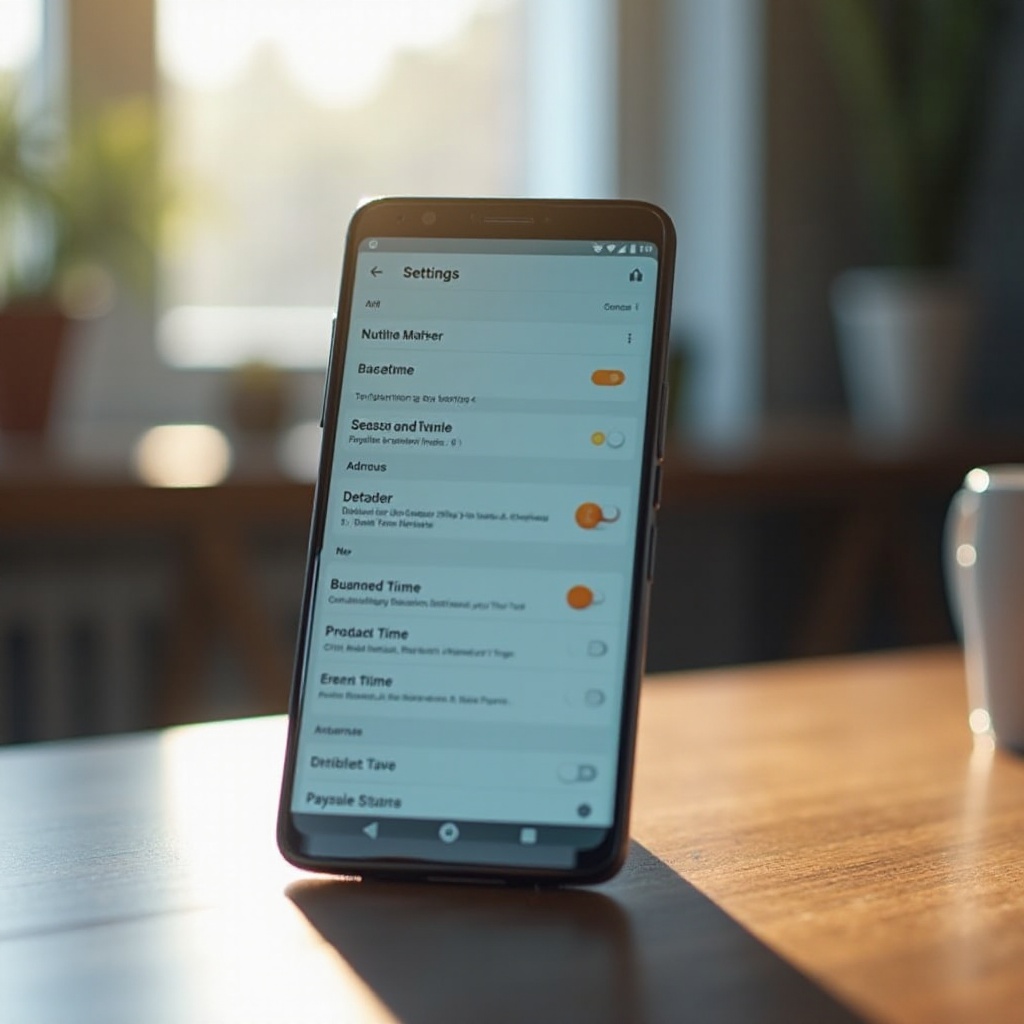
Check your time and date settings. Navigate to ‘Settings’ > ‘Date and Time’, and verify that ‘Automatic date & time’ and ‘Automatic time zone’ are enabled. This enables synchronization with your network provider for the most accurate time.
-
Toggle these options off and back on to refresh the settings. Turning them off and on again can help reestablish the correct settings within your Android device. Quick fixes like these can correct many basic issues with time accuracy. However, if yours isn’t resolved, more technical steps may be needed.
Advanced Troubleshooting Solutions
When quick solutions don’t solve the problem, advanced troubleshooting is required to stabilize your device’s time settings.
-
Sync with your network provider by enabling airplane mode for a moment, and then turning it off. This forces a reconnection that may correct the time setting.
-
Ensure that your operating system and all relevant applications are updated to their latest versions. Software updates often rectify any underlying bugs affecting time synchronization. Go to ‘Settings’ > ‘Software update’ to confirm updates are installed.
These advanced steps help resolve persistent time discrepancies, enhancing the reliability of your Android device.
Additional Tips for Maintaining Accurate Time
Accurate timekeeping on your phone is necessary for seamless functioning. Here’s how you can ensure your device remains accurate.
-
Check that ‘Automatic time zone’ isn’t accidentally turned off, especially during personal adjustments. Such manual changes might misalign the time.
-
Consider using third-party applications. Apps like ClockSync offer enhanced synchronization with atomic time servers, providing greater accuracy than standard network synchronization. By implementing these tips, you maintain not only accurate but also reliable time settings on your Android.
Conclusion
Keeping your Android’s time accurate requires a mix of understanding root causes, applying effective fixes, and embracing occasional updates. By maintaining diligent checks and incorporating suggested practices, you ensure your device’s clock serves your schedule reliably. Accurate time settings are a small yet integral part of leveraging your Android’s capabilities fully.
Frequently Asked Questions
Why does my Android phone show the wrong time sometimes?
This can happen due to incorrect settings, issues with time zone recognition, or software bugs. Ensure automatic settings are enabled and your software is up to date.
How can I ensure my Android’s time is always accurate?
Enable automatic date and time settings, regularly update your device software, and consider using third-party apps for enhanced accuracy.
Do third-party apps really help with time synchronization issues?
Yes, apps like ClockSync connect to precise atomic time servers, ensuring your device maintains an accurate and consistent time setting.